
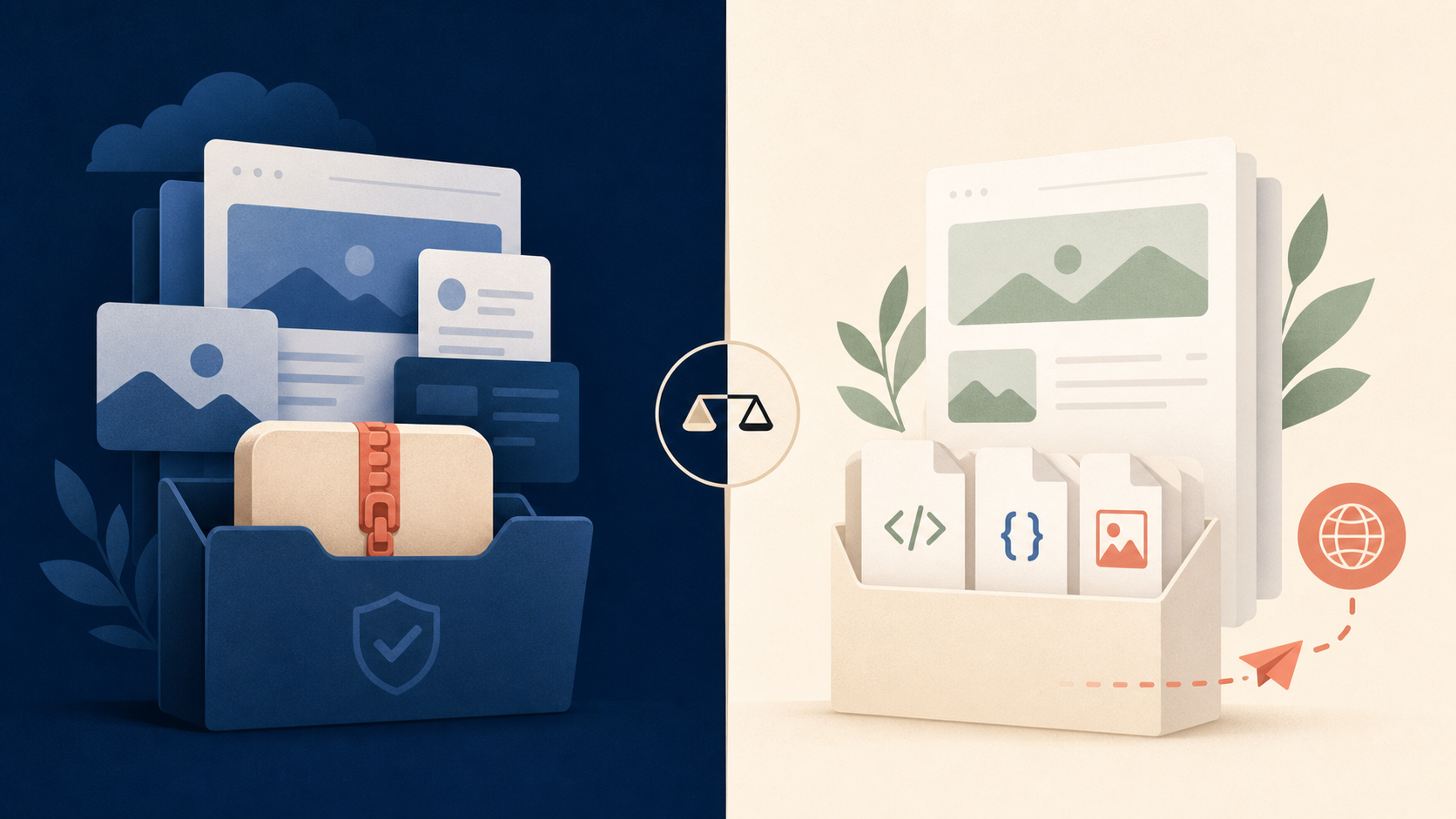
A Wix backup and a Wix export solve different problems.
A backup protects a copy of your work. An export gives you files you can move, inspect, host, and keep independent of the original builder. If your website matters to your business, you may need both.
The short answer
Use a backup when you want to recover the current version of your project inside the same workflow.
Use an export when you want a portable copy of the public website that can live outside the builder.
| If you need to… | You need… |
|---|---|
| Recover a recent version after an accidental change | A backup |
| Keep a copy before changing a domain or redesigning | A backup and an export |
| Move the public site to static hosting | An export |
| Hand the finished site to another team | An export |
| Review the actual HTML, CSS, JavaScript, and assets | An export |
| Keep working if your builder plan or access changes | An export stored somewhere you control |
What a Wix backup protects
A backup is mainly about recovery. It gives you a reference point before a risky change: a redesign, domain move, content update, or handoff.
Before you make a backup, record:
- The date and reason for the snapshot.
- The active domain and important redirects.
- The pages that must remain available.
- Forms, analytics, scripts, and integrations that need checking.
- Who can restore or approve the next version.
A backup is useful, but it does not automatically give you a deployable website. A project snapshot can still depend on the original platform, account access, plan, or builder behavior.
What a Wix export gives you
An export is about portability. It turns the public website into files that can be inspected and, where the site allows it, hosted somewhere else.
A useful export should be checked for:
- HTML pages and readable URL paths.
- CSS, JavaScript, images, fonts, and downloadable files.
- Page titles, descriptions, canonicals, and Open Graph metadata.
- Internal links and redirects.
- Forms, scripts, embeds, and other dynamic behavior.
- Robots and sitemap files on the final domain.
Exporting is not the same as rebuilding. You are preserving the approved public result, then checking what needs a different implementation outside Wix.
When should you export a Wix website to HTML?
Export before a major change if the site is already approved and valuable. That gives you a known-good copy to compare against the next version.
Export before a handoff if a client, agency, or developer needs files they can inspect and deploy.
Export when you need a static hosting option, a lower-cost deployment path, or a recoverable copy that is not tied to one builder account.
Keep the Wix project available until the exported version has passed a real review. Open important pages on desktop and mobile, submit test forms, check the final domain, and compare the page titles and links against the original.
A practical Wix backup and export workflow
1. List the pages that matter
Start with the pages that receive traffic, generate leads, or explain your product. Include the homepage, landing pages, contact paths, legal pages, and any campaign URLs.
2. Capture a backup point
Save the current version before editing. Note the date, domain, major integrations, and any known limitations.
3. Export the public site
Use ToStatic to capture the approved public website and prepare a portable copy. Preview the result before downloading or deploying it.
4. Check SEO and behavior
Confirm the exported pages have the right titles, descriptions, canonicals, internal links, images, robots path, and sitemap. Test the actions that matter to visitors.
5. Keep the copy useful
Store the ZIP or deployed version with a clear date and release note. If the site changes often, use a repeatable export and deployment workflow instead of treating every update as a one-off download.
Backup or export: which should you choose?
Choose a backup for short-term safety inside your current workflow.
Choose an export for long-term ownership and flexibility.
For a business website, the safest answer is usually both: keep a dated recovery point and keep a portable copy of the public site. That way a bad edit is recoverable, and a builder change does not leave you without files.
Keep the decision simple
You do not need to migrate a working Wix site just because you created an export. The export is an option. It gives you a reviewed copy before you need it, whether the next step is a client handoff, a static host, a domain change, or a recovery plan.
See how ToStatic exports, previews, and deploys websites, or start with a free export.
Wix backup and export FAQ
Is a Wix backup the same as an export?
No. A backup is a recovery point; an export is a portable copy of the public website and its assets. They overlap, but they are not interchangeable.
Can I export a Wix website to HTML?
The result depends on the public site’s structure and behavior. A static export can preserve the pages and assets that are publicly available, but forms, logins, databases, and other server-side features need separate testing or replacement.
Should I keep Wix after exporting?
Yes, until the exported site has been reviewed on its final domain and the important visitor journeys work. Keeping the source project gives you a reference and a fallback during the transition.
How often should I back up a Wix website?
Create a backup before important edits and keep dated exports when the site changes or reaches a meaningful release. A weekly cadence makes sense for actively maintained business sites, provided each copy is labeled and tested.
Conversation
Comments
Ask a question, share a practical note, or reply to another site owner.